

This documentation is for the proprietary Chainloop Enterprise. If you are looking for the Open Source Evidence Store documentation, please refer to the Chainloop Evidence Store guide
Introduction
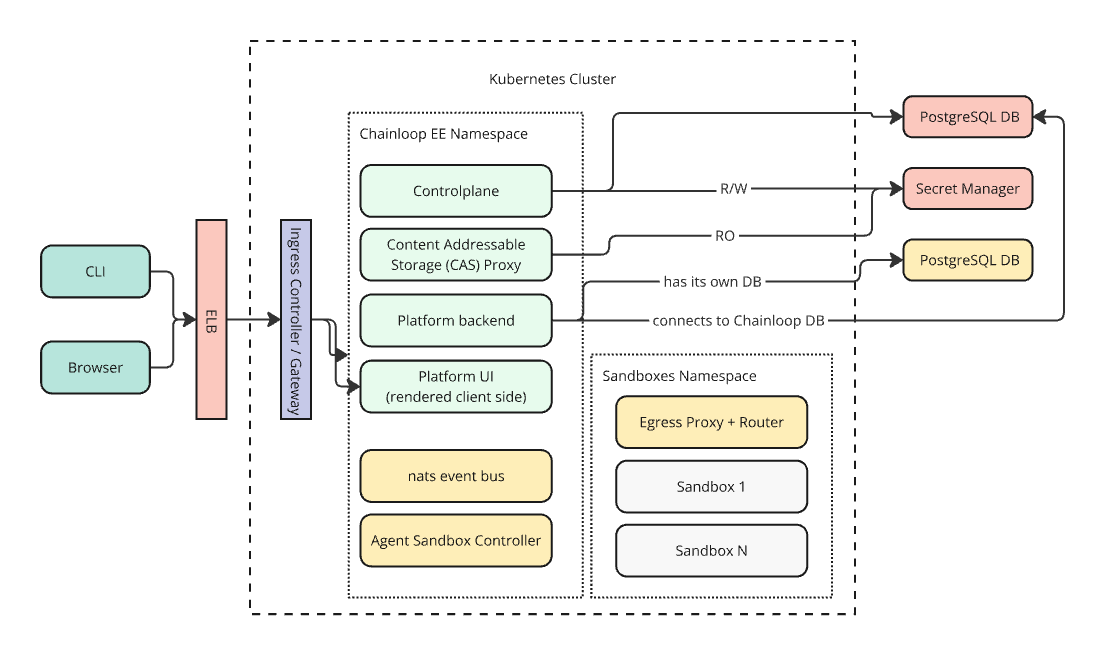
The Chainloop platform has two top-level components: Chainloop Evidence Store and Chainloop Platform. Both components are deployed using one unified Helm Chart calledchainloop-ee (Chainloop Enterprise Edition).
Once deployed, for example in an AWS Kubernetes cluster, it could look like this:
Retrieve Private OCI Registry credentials.
To pull the Helm Charts and container images you’ll need to authenticate with a private OCI registry managed. If you don’t have them yet, please contact the Chainloop team. Once you get the creds, you can give it a try by authenticating locally and pulling the latest version of both Helm Charts.Configure credentials for deployment
You have two options to consume the provided Helm Charts and container images in your Kubernetes cluster:Option 1: Pull images and Chart directly from Private Azure Registry
To pull the images, you’ll need to store these credentials as a K8s secret in the cluster where you will deploy the Helm Charts. Later, they will be referenced in the Helm charts as imagePullSecrets.Option 2: Relocate Helm Chart and images to your own registry
Both charts are compatible with relocation processes performed by the Helm Relocation Plugin. This means that you can easily import the Helm Charts and Container images provided by the Chainloop team into your registry, even behind the firewall. This is a two-step process (wrap -> unwrap)- Pull all the container images and Helm chart and wrap them in an intermediate tarball.
- If needed, transfer that tarball to your air-gap environment via an offline medium
- Unwrap the tarball and push container images, update the Helm Chart with new image references, and push it to the target registry.
Deploy and Configure in Kubernetes
Step 1 - Deploy Platform Chart
Please refer to the Chart README file that can be found in the chart tarball, which can be pulled like this.- Do an end-to-end run of our getting started guide to test the platform
- Optionally, configure the platform to enhance it with additional features following the steps below
Step 2 - Set up a license
Chainloop Enterprise instances are activated with a license key issued by the Chainloop team. If you don’t have one yet, please contact us. Add it to the Platform Chartvalues.yaml:
Platform Chart values.yaml
The license key is optional during the non-enforcing rollout phase, so instances without one keep working for now. We recommend configuring it as soon as you receive it.
Step 3 (optional) - Setup SMTP configuration
To enable email notifications, you need to configure the SMTP settings in the Chainloop Platform backend Helm chartvalues.yaml file like this:
Platform Chart values.yaml
Step 4 (optional) - Configure users auto-onboarding
This step allows automatically onboarding users to specific organizations and user groups. Follow this guide to configure Chainloop Platform for auto-provisioning.Step 5 (optional) - Restrict organization creation
This step allows restricting organization creation to specific users. Follow this guide to configure Chainloop Platform for restricting organization creation.Step 6 (optional) - Configure integrations
The platform backend can integrate with external providers to onboard repositories, run SCM checks, support keyless attestation, and power AI-assisted Q&A. Configure the provider(s) you use below.Configure a GitHub App
Chainloop can onboard repositories and run SCM checks through a GitHub App, using App installation tokens instead of user OAuth. It also supports GitHub keyless attestation. See the GitHub permissions reference for the full cumulative permission set.- Create a GitHub App (GitHub → Settings → Developer settings → GitHub Apps → New). At a minimum it needs the Metadata: Read permission. For the full feature set also grant Contents (Read & Write), Pull requests (Read & Write), Issues (Write), Checks (Read & Write), Administration (Read) and Members (Read).
- Set the Webhook URL to
https://[your-backend-hostname]/github/events(the backend serves the receiver under/github/events), for examplehttps://api.app.chainloop.dev/github/events. Set the Webhook secret to the same value you put inbackend.githubApp.webhookSecretbelow, and subscribe to the eventspull_request,issue_comment,pull_request_reviewandpull_request_review_comment. - Generate a private key (downloads a
.pem) and note the App ID and the App slug (the slug in the App’s public URL). - Configure the chart:
Platform Chart values.yaml
Configure GitLab
GitLab (gitlab.com or self-hosted) needs no chart configuration. Org admins register a GitLab connection at runtime with an access token from the Chainloop web UI — see Connect GitHub & GitLab. The backend trusts each connection’s OIDC issuer automatically, so GitLab keyless attestation works without a static machine-identity issuer or a redeploy. The only optional setting is the shared webhook secret, which the chart auto-generates and persists across upgrades. Set it explicitly only if you want to manage the value yourself:Platform Chart values.yaml
Configure a Slack App
Chainloop can install a Slack App per organization to power AI-assisted Q&A (Chainloop Ask) from Slack. Create a Slack App at api.slack.com/apps.- Create a Slack App and note its Client ID, Client Secret and Signing Secret (Basic Information → App Credentials), those would be used for the chart.
- Go to “App Manifest” in the Slack App settings and setup the manifest with the appropriate URLs (note the backend URL):
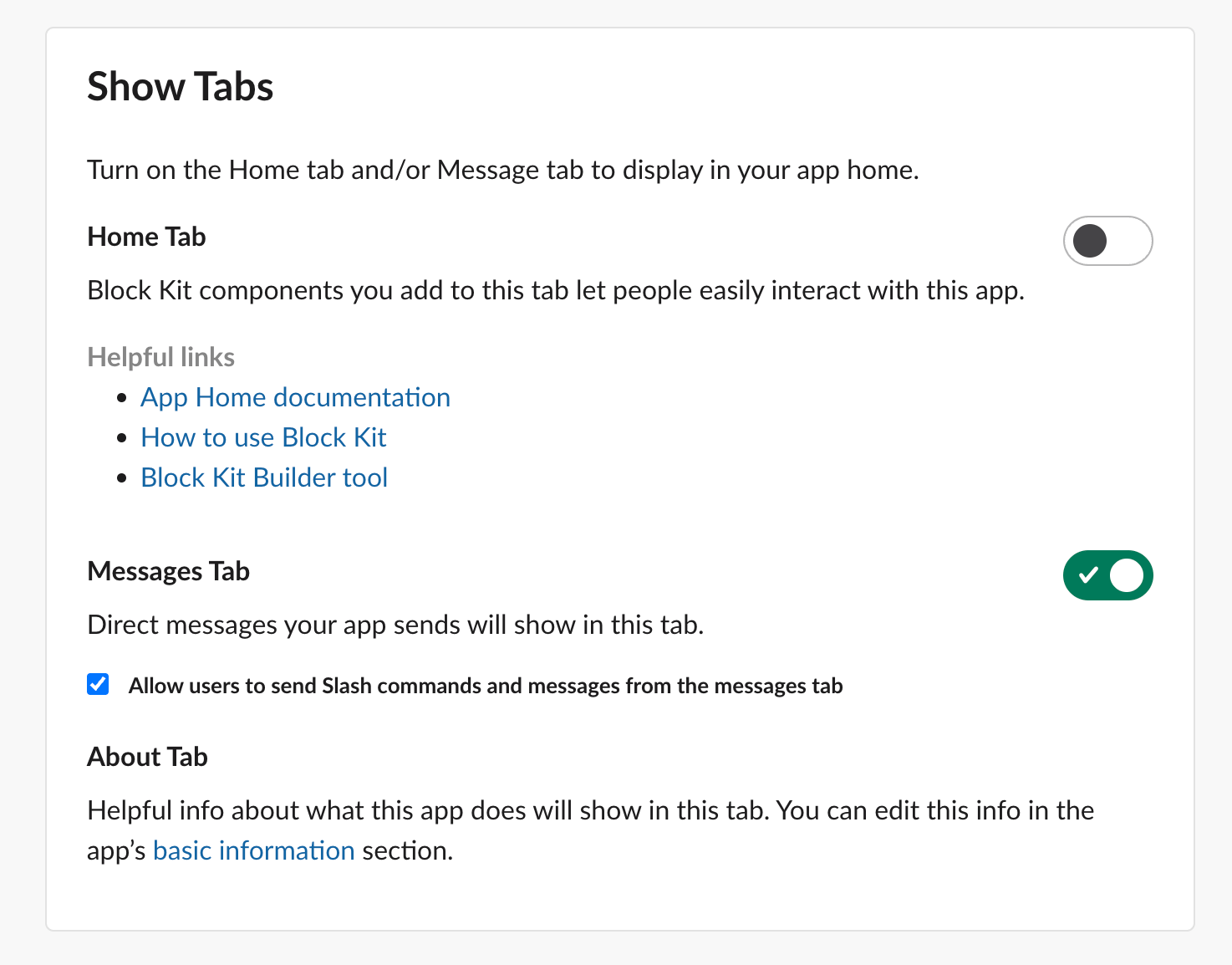
- Enable direct messages so users can talk to Chainloop Ask directly. In the Slack App settings, go to App Home → Show Tabs, turn on the Messages Tab, and check Allow users to send Slash commands and messages from the messages tab. Without this, users won’t be able to DM the app.
- Configure the chart:
Platform Chart values.yaml
Configure Linear
Chainloop integrates with Linear so that issues it creates are attributed to your own Linear app. Each organization installs it through OAuth.- Create a Linear OAuth application at linear.app/settings/api/applications/new.
- Note its Client ID and Client Secret.
- Configure the chart:
Platform Chart values.yaml
Step 7 (optional) - Test MCP server
The Chainloop Model Context Protocol (MCP) server is enabled by default. It is served by the backend under the/mcp path, so it is exposed through the existing backend domain.
This means the MCP server is available at https://[your-backend-hostname]/mcp, for example https://api.app.chainloop.dev/mcp.
Refer to the Chainloop MCP server guide to learn how to connect to it from your AI clients and agents.