

This feature is only available on Chainloop’s platform paid plans.
Static provisioning
Users and groups
Static provisioning is useful in scenarios where all logged-in users should be automatically added to an organization with a specific role, and optionally, added to one or more groups. To enable this behaviour, add this configuration to thebackend section in your Platform deployment values.yaml:
acme-corp with the OrgViewer role.
If the user already existed with a different role, it will be kept. Additionally, they will be added to the compliance-team and development-team teams.
Note that existing user memberships will remain unchanged.
Instance Administrators
You can also configure instance administrators by providing ainstance_admin_spec in the static_config section.
Platform Chart values.yaml
restrictOrgCreation flag is set to true in the Chainloop Controlplane.
Learn more in this guide.
Dynamic provisioning through Single Sign-on (OIDC)
Follow these steps to configure auto-onboarding based on user claims.Configuring your IDP to provide group claims
Make sure user OIDC tokens come with agroups claim. You’ll need to check your provider configuration options.
For example, Azure Entra ID provides the option through the Enterprise Applications SSO configuration.
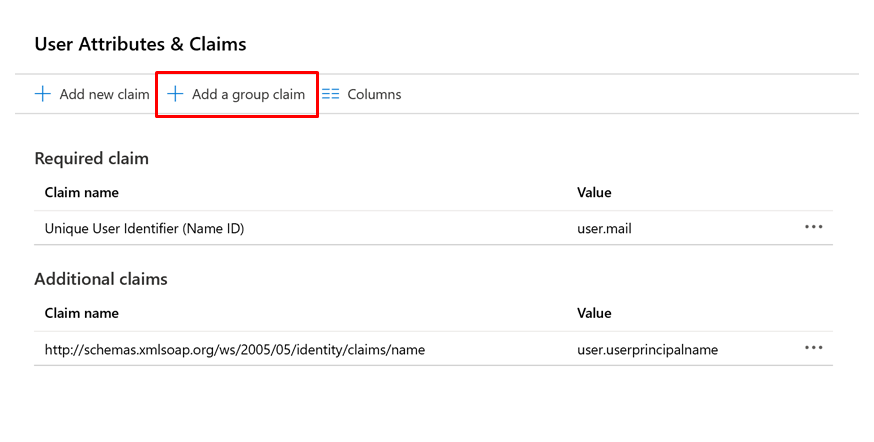
Configuring Chainloop platform to parse groups claims
In your chart values.yaml file, add this snippet to your backend section:
-
(1)
sync_mode: It can take two values:ADDITIVE(default) andMANAGED. In the the fault configuration (ADDITIVE), users will be provisioned to the orgs and groups mapped from claims, but existing group and org memberships will be kept. InMANAGEDmode, however, only org and group membership from SSO claims will be considered, and others will be removed. -
(2)
groups_pattern: this is the pattern that group claims should follow. Reserved placeholders{ORG_NAME}and{GROUP_NAME}will be mapped to the actual values coming in the claims. Note that both are mandatory, and the claim will be ignored if (1. it doesn’t match the pattern, or 2. it doesn’t provide both org and group names). For example, the above pattern will match:chainloop_acme-corp_developerschainloop_acme-corp_org-viewer
#{GROUP_NAME}@{ORG_NAME}#will match:#developers@acme-corp##org-admin@acme-corp#
-
(3)
default_role: it will be used as the default role when joining users to an organization.
Using dynamic configuration to provide a role instead of a group
The above configuration can also be used to map Organization roles instead of user groups. The following “groups” are reserved and will be considered org roles instead:org-ownerwill be mapped to the Org Owner role in the organization.org-adminwill be mapped to the Org Admin role.org-viewerto Org Viewer.org-memberandorg-contributorwill be mapped to Org Member and Org Contributor (enabling project-level RBAC).adminwill be identified as the instance admin role if organization isinstance, allowing users to create organizations even if therestrictOrgCreationflag is set totruein the Chainloop Controlplane. See the Restrict organization creation to specific users guide for more information.
Requiring at least one entitlement to access the system
As stated at the beginning of the section, Dynamic provisioning can set user in a managed state. Information coming fromgroups
claim will take precedence.
If the setting sync_mode is set to MANAGED, at least one matching entitlement (group or role) in group claims is needed to allow users to access the system.
If that’s not the case, users will be blocked from accessing the system.
For this process to work, two settings must be configured, one in the chainloop Helm chart and another in the platform one.
In Chainloop, you need to enable the allowlist feature with allowDbOverrides set to true and optionally provide a custom message to be shown to the user.
sync_mode flag to MANAGED in the autoOnboarding section.