> ## Documentation Index
> Fetch the complete documentation index at: https://docs.chainloop.dev/llms.txt
> Use this file to discover all available pages before exploring further.
# Connect GitHub & GitLab
> Connect a source-control integration so Chainloop can list and watch your repositories.
Connecting GitHub or GitLab is a **one-time, organization-level** action performed from **Integrations** — not from a per-repository "Repositories" section. Once your organization is connected, the [Create Project wizard](/get-started/projects/create-project) lists your repositories **live** from the provider's API. There's no manual repository import step to run beforehand.
The two providers connect differently: **GitHub** installs the Chainloop GitHub App, while **GitLab** registers a connection with an access token.
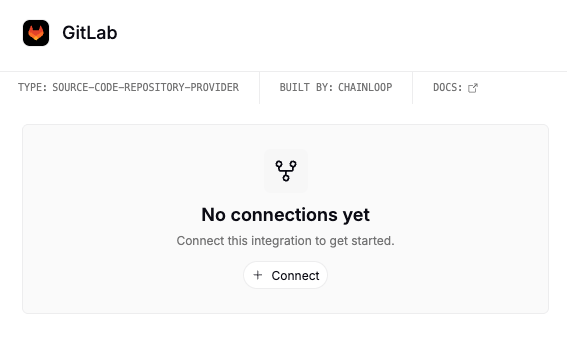
In the Chainloop web UI, go to [**Integrations**](https://app.chainloop.dev/integrations). Under the source-control integrations you'll find **GitHub** and **GitLab**.
 Follow the provider-specific flow below.
Click **Connect** on the GitHub integration. GitHub prompts you to install the Chainloop GitHub App on your account or organization, then choose whether to grant access to all repositories or select individual ones.
Follow the provider-specific flow below.
Click **Connect** on the GitHub integration. GitHub prompts you to install the Chainloop GitHub App on your account or organization, then choose whether to grant access to all repositories or select individual ones.
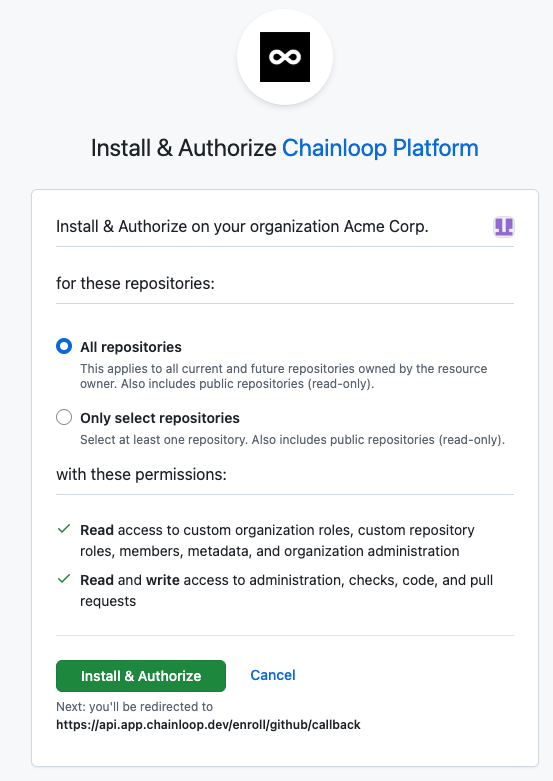 You can change this selection later from GitHub without reconnecting from Chainloop.
GitLab connects with an **access token** — there is no OAuth authorization to complete and no Chainloop GitLab app to install. Register the connection from the GitLab integration form:
* **GitLab host** — `https://gitlab.com`, or the URL of your self-managed instance.
* **Access token** — a token with the `api` scope. A **group access token** or a [**service-account**](https://docs.gitlab.com/user/profile/service_accounts/) token is recommended over a personal one, so the connection isn't tied to an individual user and keeps working as people join or leave.
Chainloop validates the token against the instance and, once accepted, uses it to list repositories, register webhooks, post merge-request feedback, and open remediation merge requests. Chainloop lists repositories the token can access at the **Developer** access level or above.
You can register **more than one** GitLab connection per organization — for example separate on-prem instances (development and production), or distinct tokens for the same host. Each connection is managed independently, and every repository remembers the connection it was imported through.
Chainloop stores only repository metadata (ID and name), not your repository code.
## Adjusting repository access
To change which repositories Chainloop can see, use the provider rather than reconnecting from Chainloop:
* **GitHub**: open the Chainloop GitHub App configuration for your account or organization and update the repository selection. The Create Project wizard's **Manage access** link takes you here.
* **GitLab**: grant or revoke the access token's membership on the relevant groups and projects (a token sees repositories at **Developer** level or above). To swap the token entirely, disconnect the connection from **Integrations** and register a new one.
## Reconnecting
If a connection breaks, managed workflows and other repository features are paused for the affected repositories until you reconnect.
* **GitHub**: if the App is uninstalled, go to **Integrations**, click **Connect**, and re-grant repository access.
* **GitLab**: if the access token is revoked or expires, register the connection again from **Integrations** with a valid token.
***
Once connected, [create a project](/get-started/projects/create-project) and link a repository to it. See also the [Repository Integration](/guides/repository-integration) overview for how the providers differ and what connecting enables, and the [GitHub permissions reference](/reference/github-permissions) for the exact scopes the Chainloop GitHub App requests.
You can change this selection later from GitHub without reconnecting from Chainloop.
GitLab connects with an **access token** — there is no OAuth authorization to complete and no Chainloop GitLab app to install. Register the connection from the GitLab integration form:
* **GitLab host** — `https://gitlab.com`, or the URL of your self-managed instance.
* **Access token** — a token with the `api` scope. A **group access token** or a [**service-account**](https://docs.gitlab.com/user/profile/service_accounts/) token is recommended over a personal one, so the connection isn't tied to an individual user and keeps working as people join or leave.
Chainloop validates the token against the instance and, once accepted, uses it to list repositories, register webhooks, post merge-request feedback, and open remediation merge requests. Chainloop lists repositories the token can access at the **Developer** access level or above.
You can register **more than one** GitLab connection per organization — for example separate on-prem instances (development and production), or distinct tokens for the same host. Each connection is managed independently, and every repository remembers the connection it was imported through.
Chainloop stores only repository metadata (ID and name), not your repository code.
## Adjusting repository access
To change which repositories Chainloop can see, use the provider rather than reconnecting from Chainloop:
* **GitHub**: open the Chainloop GitHub App configuration for your account or organization and update the repository selection. The Create Project wizard's **Manage access** link takes you here.
* **GitLab**: grant or revoke the access token's membership on the relevant groups and projects (a token sees repositories at **Developer** level or above). To swap the token entirely, disconnect the connection from **Integrations** and register a new one.
## Reconnecting
If a connection breaks, managed workflows and other repository features are paused for the affected repositories until you reconnect.
* **GitHub**: if the App is uninstalled, go to **Integrations**, click **Connect**, and re-grant repository access.
* **GitLab**: if the access token is revoked or expires, register the connection again from **Integrations** with a valid token.
***
Once connected, [create a project](/get-started/projects/create-project) and link a repository to it. See also the [Repository Integration](/guides/repository-integration) overview for how the providers differ and what connecting enables, and the [GitHub permissions reference](/reference/github-permissions) for the exact scopes the Chainloop GitHub App requests.