> ## Documentation Index
> Fetch the complete documentation index at: https://docs.chainloop.dev/llms.txt
> Use this file to discover all available pages before exploring further.
# How to use the Chainloop MCP server
> How to configure Chainloop MCP in your AI clients and agents
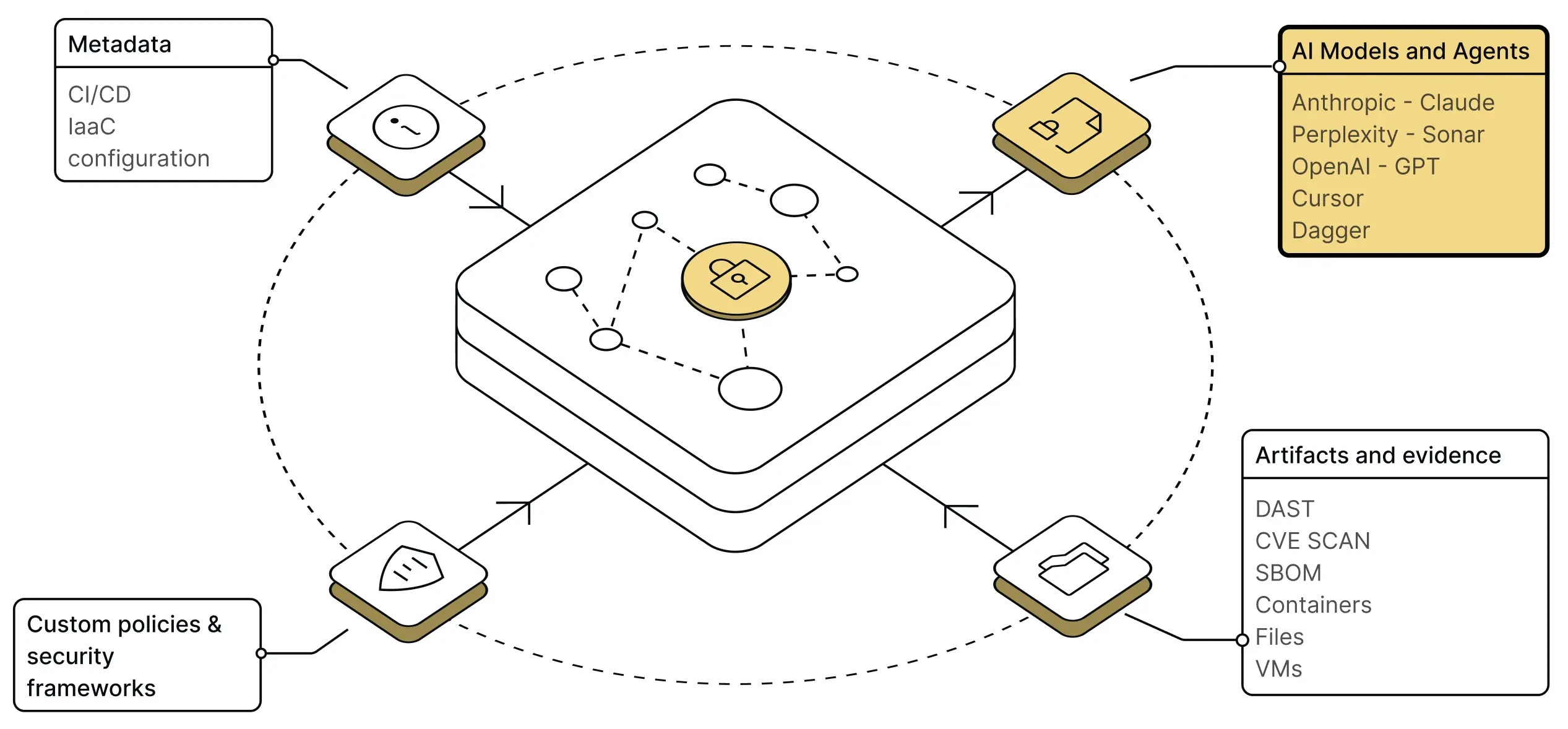
Chainloop remote [Model Context Protocol](https://modelcontextprotocol.io/) (MCP) server is a new way to interact with Chainloop natively from your AI clients or agents. This allows you to **perform complex queries, craft compliance reports, or implement advanced agentic workflows**. All of this done securely, using the data already stored and [signed](/concepts/attestations) in Chainloop.
 ## How to connect to the MCP server
If you are running your own instance of Chainloop platform, first, make sure to enable the feature by following [this guide](/guides/deployment/chainloop-ee#step-7-optional-expose-mcp-server).
The MCP server is currently exposed as a [streamable API](https://modelcontextprotocol.io/specification/2025-03-26/basic/transports#streamable-http) endpoint at `https://api.app.chainloop.dev/mcp`. For authentication, the MCP server supports OAuth2 user auth and API token authentication via `CHAINLOOP_TOKEN` (see [API tokens](/reference/api-tokens)).
Our server is been tested against the following MCP Clients: [Claude Desktop](https://claude.ai/download), [Cursor](https://www.cursor.com/), [Visual Studio Code](https://code.visualstudio.com/), and [Dagger](https://dagger.io/). Below you will find some examples, if you can't find yours, please refer to their documentation.
`mcp-remote` is used only for Claude Desktop as a temporary workaround until native Streamable HTTP support is available.
### Claude Desktop
You can configure the MCP server in [Claude Desktop](https://claude.ai/download) please follow [this example](https://modelcontextprotocol.io/quickstart/user#2-add-the-filesystem-mcp-server) to find the configuration file but add the following MCP configuration instead.
```json theme={"dark"}
{
"mcpServers": {
"chainloop": {
"command": "npx",
"args": [
"mcp-remote",
"https://api.app.chainloop.dev/mcp"
]
}
}
}
```
```json theme={"dark"}
{
"mcpServers": {
"chainloop": {
"command": "npx",
"args": [
"mcp-remote",
"https://api.app.chainloop.dev/mcp",
"--header",
"Authorization: Bearer ${CHAINLOOP_TOKEN}"
],
"env": {
"CHAINLOOP_TOKEN": "REDACTED"
}
}
}
}
```
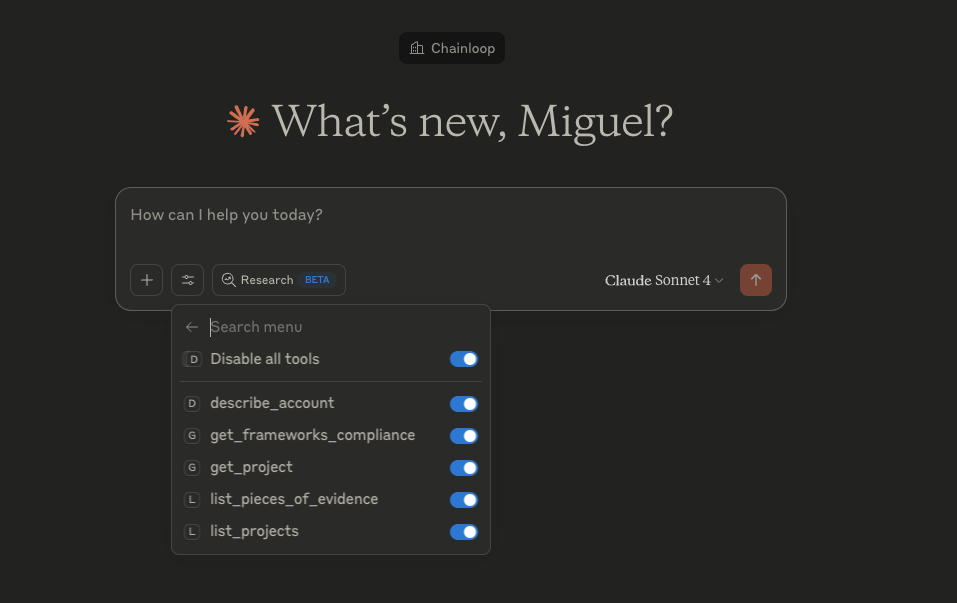
Once you enable it and restart the Claude, you will set the list of tools next to the prompt.
## How to connect to the MCP server
If you are running your own instance of Chainloop platform, first, make sure to enable the feature by following [this guide](/guides/deployment/chainloop-ee#step-7-optional-expose-mcp-server).
The MCP server is currently exposed as a [streamable API](https://modelcontextprotocol.io/specification/2025-03-26/basic/transports#streamable-http) endpoint at `https://api.app.chainloop.dev/mcp`. For authentication, the MCP server supports OAuth2 user auth and API token authentication via `CHAINLOOP_TOKEN` (see [API tokens](/reference/api-tokens)).
Our server is been tested against the following MCP Clients: [Claude Desktop](https://claude.ai/download), [Cursor](https://www.cursor.com/), [Visual Studio Code](https://code.visualstudio.com/), and [Dagger](https://dagger.io/). Below you will find some examples, if you can't find yours, please refer to their documentation.
`mcp-remote` is used only for Claude Desktop as a temporary workaround until native Streamable HTTP support is available.
### Claude Desktop
You can configure the MCP server in [Claude Desktop](https://claude.ai/download) please follow [this example](https://modelcontextprotocol.io/quickstart/user#2-add-the-filesystem-mcp-server) to find the configuration file but add the following MCP configuration instead.
```json theme={"dark"}
{
"mcpServers": {
"chainloop": {
"command": "npx",
"args": [
"mcp-remote",
"https://api.app.chainloop.dev/mcp"
]
}
}
}
```
```json theme={"dark"}
{
"mcpServers": {
"chainloop": {
"command": "npx",
"args": [
"mcp-remote",
"https://api.app.chainloop.dev/mcp",
"--header",
"Authorization: Bearer ${CHAINLOOP_TOKEN}"
],
"env": {
"CHAINLOOP_TOKEN": "REDACTED"
}
}
}
}
```
Once you enable it and restart the Claude, you will set the list of tools next to the prompt.
 ### Claude Code
Claude Code also supports MCP servers. You can configure the Chainloop MCP server using the `claude` CLI command, or manually add the configuration to your Claude Code settings file:
1. Open Claude Code settings by running the command `/settings` or by opening the settings file directly at `~/.claude.json` (Linux/macOS).
2. Add the following MCP server configuration:
```bash theme={"dark"}
claude mcp add --transport http chainloop https://api.app.chainloop.dev/mcp
```
```json theme={"dark"}
{
"mcpServers": {
"chainloop": {
"url": "https://api.app.chainloop.dev/mcp"
}
}
}
```
```bash theme={"dark"}
claude mcp add --transport http chainloop https://api.app.chainloop.dev/mcp --header "Authorization: Bearer ${CHAINLOOP_TOKEN}"
```
```json theme={"dark"}
{
"mcpServers": {
"chainloop": {
"url": "https://api.app.chainloop.dev/mcp",
"headers": {
"Authorization": "Bearer ${CHAINLOOP_TOKEN}"
}
}
}
}
```
Set `CHAINLOOP_TOKEN` to your Chainloop [API token](/reference/api-tokens).
3. Restart Claude Code for the changes to take effect.
Once configured, Claude Code will automatically connect to the Chainloop MCP server, and you'll be able to interact with Chainloop directly from your AI coding sessions.
### Claude.ai
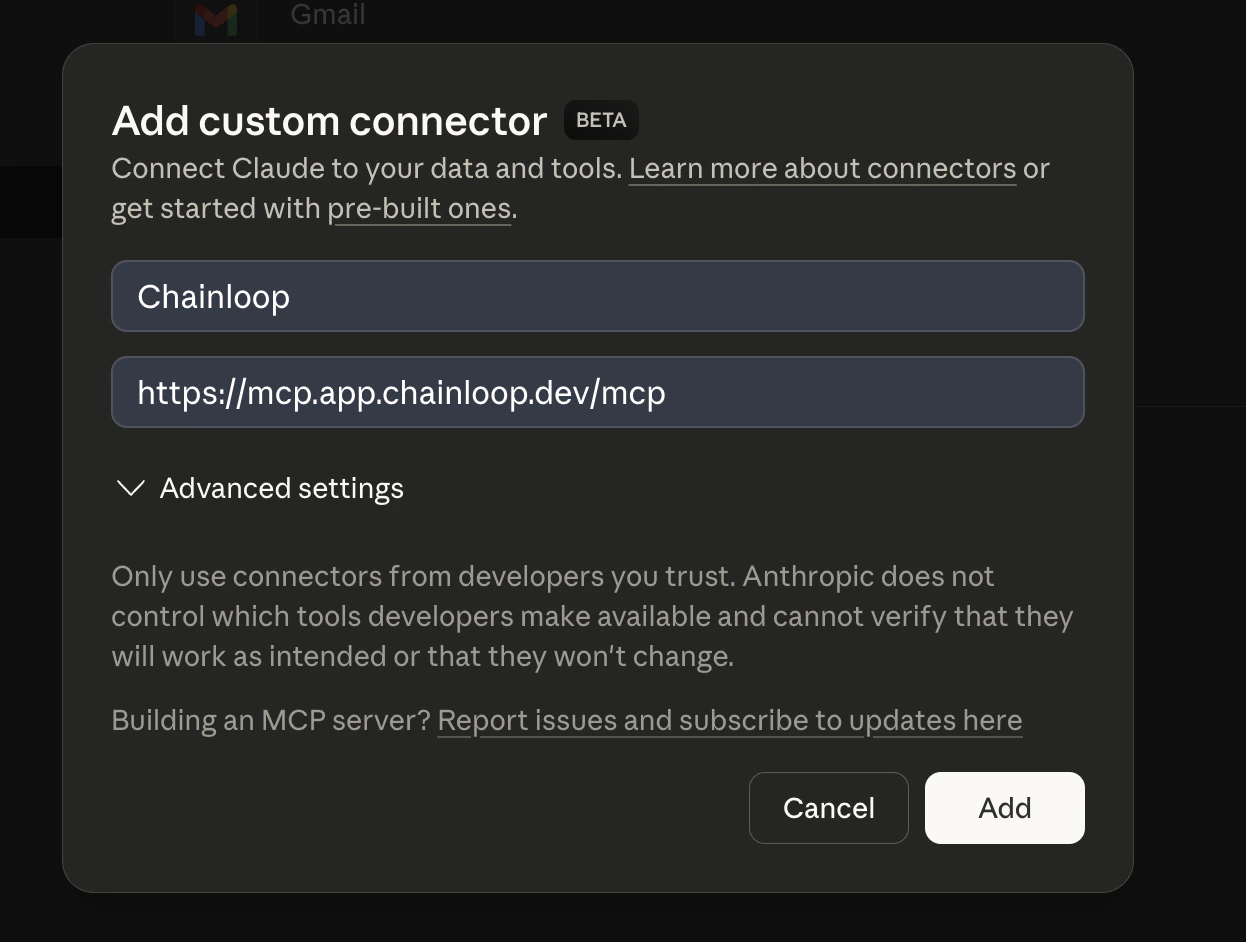
If you are using Claude.ai, you can connect to the Chainloop MCP server by creating a **custom connector**. Go to the [Connectors settings](https://claude.ai/settings/connectors), add a custom connector pointing to `https://api.app.chainloop.dev/mcp`.
### Claude Code
Claude Code also supports MCP servers. You can configure the Chainloop MCP server using the `claude` CLI command, or manually add the configuration to your Claude Code settings file:
1. Open Claude Code settings by running the command `/settings` or by opening the settings file directly at `~/.claude.json` (Linux/macOS).
2. Add the following MCP server configuration:
```bash theme={"dark"}
claude mcp add --transport http chainloop https://api.app.chainloop.dev/mcp
```
```json theme={"dark"}
{
"mcpServers": {
"chainloop": {
"url": "https://api.app.chainloop.dev/mcp"
}
}
}
```
```bash theme={"dark"}
claude mcp add --transport http chainloop https://api.app.chainloop.dev/mcp --header "Authorization: Bearer ${CHAINLOOP_TOKEN}"
```
```json theme={"dark"}
{
"mcpServers": {
"chainloop": {
"url": "https://api.app.chainloop.dev/mcp",
"headers": {
"Authorization": "Bearer ${CHAINLOOP_TOKEN}"
}
}
}
}
```
Set `CHAINLOOP_TOKEN` to your Chainloop [API token](/reference/api-tokens).
3. Restart Claude Code for the changes to take effect.
Once configured, Claude Code will automatically connect to the Chainloop MCP server, and you'll be able to interact with Chainloop directly from your AI coding sessions.
### Claude.ai
If you are using Claude.ai, you can connect to the Chainloop MCP server by creating a **custom connector**. Go to the [Connectors settings](https://claude.ai/settings/connectors), add a custom connector pointing to `https://api.app.chainloop.dev/mcp`.
 ### ChatGPT
If you are using ChatGPT, you can connect to the Chainloop MCP server by creating a **custom connector** that points to `https://api.app.chainloop.dev/mcp`.
### Cursor
[](https://cursor.com/en-US/install-mcp?name=chainloop\&config=eyJ1cmwiOiJodHRwczovL2FwaS5hcHAuY2hhaW5sb29wLmRldi9tY3AifQ%3D%3D)
```json theme={"dark"}
{
"mcpServers": {
"chainloop": {
"url": "https://api.app.chainloop.dev/mcp"
}
}
}
```
```json theme={"dark"}
{
"mcpServers": {
"chainloop": {
"url": "https://api.app.chainloop.dev/mcp",
"headers": {
"Authorization": "Bearer ${CHAINLOOP_TOKEN}"
}
}
}
}
```
### ChatGPT
If you are using ChatGPT, you can connect to the Chainloop MCP server by creating a **custom connector** that points to `https://api.app.chainloop.dev/mcp`.
### Cursor
[](https://cursor.com/en-US/install-mcp?name=chainloop\&config=eyJ1cmwiOiJodHRwczovL2FwaS5hcHAuY2hhaW5sb29wLmRldi9tY3AifQ%3D%3D)
```json theme={"dark"}
{
"mcpServers": {
"chainloop": {
"url": "https://api.app.chainloop.dev/mcp"
}
}
}
```
```json theme={"dark"}
{
"mcpServers": {
"chainloop": {
"url": "https://api.app.chainloop.dev/mcp",
"headers": {
"Authorization": "Bearer ${CHAINLOOP_TOKEN}"
}
}
}
}
```
