> ## Documentation Index
> Fetch the complete documentation index at: https://docs.chainloop.dev/llms.txt
> Use this file to discover all available pages before exploring further.
# Built-in & Managed Workflows
> How managed, manual, and off delivery modes work, and what built-in workflow templates do.
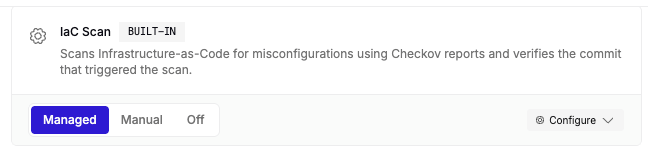
Every workflow template in a project has a **delivery mode**: **Managed**, **Manual**, or **Off**. You choose the mode per template, either in the [Create Project wizard](/get-started/projects/create-project) or later from the project's workflow settings.
## Delivery modes
 | Mode | What happens |
| ----------- | ------------------------------------------------------------------------------------------------------------------------------------------------------ |
| **Managed** | Chainloop runs the workflow server-side, in a sandbox, against your repository code. No CI changes are required. |
| **Manual** | Chainloop sets up the workflow and its contract; you instrument your CI with the [Chainloop CLI](/get-started/first-attestation) to send attestations. |
| **Off** | The workflow is not created. |
Managed mode requires a repository connected through a provider that supports it — currently **GitHub or GitLab**. If no repository is linked to the project, or the linked repository's provider doesn't support Managed mode, that option is disabled and you can choose Manual or Off instead.
GitLab support for Managed mode is rolling out. If it isn't available for your GitLab repositories yet, use Manual mode or contact your Chainloop administrator.
## Built-in vs. custom templates
Workflow templates come from two sources:
* **Built-in templates** are provided by Chainloop, available on Chainloop Cloud, and pre-selected by default.
* **Custom templates** are defined by your organization. Note that these are only available in on-prem installations.
On self-hosted instances, only your organization's custom templates are listed — Chainloop's built-in templates aren't available.
## What managed workflows do after connection
Once a workflow is set to Managed, Chainloop runs it **periodically** against the connected repository — you don't need to trigger anything from your CI.
For templates that scan for vulnerabilities, these periodic runs power **AI auto-remediation**: Chainloop assesses each finding with AI and, when a fix is available, proposes it as a pull request (GitHub) or merge request (GitLab). See [Vulnerability Management](/concepts/vulnerability-management#assessment-and-auto-remediation-using-ai) for how the assessment and remediation flow works.
Managed workflows can also check your repository's [SCM configuration](/reference/branch-protection-policies), such as branch protection settings, against good practices.
## Template categories
Templates are grouped into categories:
* **Repository Watch** — tracks changes to the repository itself, such as configuration drift.
* **Security Scanning** — scans code, dependencies, or containers for vulnerabilities.
* **AI Governance** — monitors AI agent configuration and usage.
* **Other** — templates that don't fit the categories above.
## Configuring a template
Each template has a **Configure** panel where you set its options before adding it to the project.
| Mode | What happens |
| ----------- | ------------------------------------------------------------------------------------------------------------------------------------------------------ |
| **Managed** | Chainloop runs the workflow server-side, in a sandbox, against your repository code. No CI changes are required. |
| **Manual** | Chainloop sets up the workflow and its contract; you instrument your CI with the [Chainloop CLI](/get-started/first-attestation) to send attestations. |
| **Off** | The workflow is not created. |
Managed mode requires a repository connected through a provider that supports it — currently **GitHub or GitLab**. If no repository is linked to the project, or the linked repository's provider doesn't support Managed mode, that option is disabled and you can choose Manual or Off instead.
GitLab support for Managed mode is rolling out. If it isn't available for your GitLab repositories yet, use Manual mode or contact your Chainloop administrator.
## Built-in vs. custom templates
Workflow templates come from two sources:
* **Built-in templates** are provided by Chainloop, available on Chainloop Cloud, and pre-selected by default.
* **Custom templates** are defined by your organization. Note that these are only available in on-prem installations.
On self-hosted instances, only your organization's custom templates are listed — Chainloop's built-in templates aren't available.
## What managed workflows do after connection
Once a workflow is set to Managed, Chainloop runs it **periodically** against the connected repository — you don't need to trigger anything from your CI.
For templates that scan for vulnerabilities, these periodic runs power **AI auto-remediation**: Chainloop assesses each finding with AI and, when a fix is available, proposes it as a pull request (GitHub) or merge request (GitLab). See [Vulnerability Management](/concepts/vulnerability-management#assessment-and-auto-remediation-using-ai) for how the assessment and remediation flow works.
Managed workflows can also check your repository's [SCM configuration](/reference/branch-protection-policies), such as branch protection settings, against good practices.
## Template categories
Templates are grouped into categories:
* **Repository Watch** — tracks changes to the repository itself, such as configuration drift.
* **Security Scanning** — scans code, dependencies, or containers for vulnerabilities.
* **AI Governance** — monitors AI agent configuration and usage.
* **Other** — templates that don't fit the categories above.
## Configuring a template
Each template has a **Configure** panel where you set its options before adding it to the project.
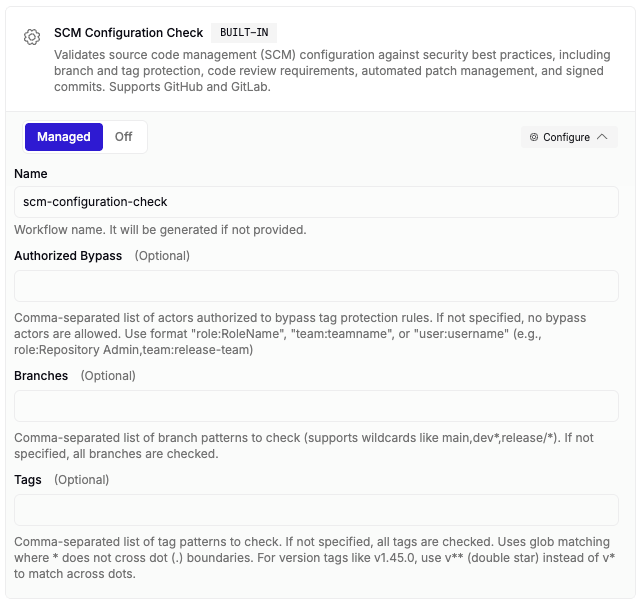 * **Workflow name** — optional; if you leave it blank, Chainloop generates one automatically.
* **Template inputs** — any additional fields the template requires.
Some templates allow multiple configurations. Adding more than one configuration for the same template creates a separate workflow for each.
* **Workflow name** — optional; if you leave it blank, Chainloop generates one automatically.
* **Template inputs** — any additional fields the template requires.
Some templates allow multiple configurations. Adding more than one configuration for the same template creates a separate workflow for each.