> ## Documentation Index
> Fetch the complete documentation index at: https://docs.chainloop.dev/llms.txt
> Use this file to discover all available pages before exploring further.
# Connect GitHub & GitLab
> Connect a source-control integration so Chainloop can list and watch your repositories.
Connecting GitHub or GitLab is a **one-time, organization-level** action performed from **Integrations** — not from a per-repository "Repositories" section. Once your organization is connected, the [Create Project wizard](/get-started/projects/create-project) lists your repositories **live** from the provider's API. There's no manual repository import step to run beforehand.
## Connect a provider
In the Chainloop web UI, go to [**Integrations**](https://app.chainloop.dev/integrations). Under the source-control integrations you'll find **GitHub** and **GitLab**.
Click **Connect** on the provider you use. You'll be redirected to the provider to authorize access and choose which repositories Chainloop can see.
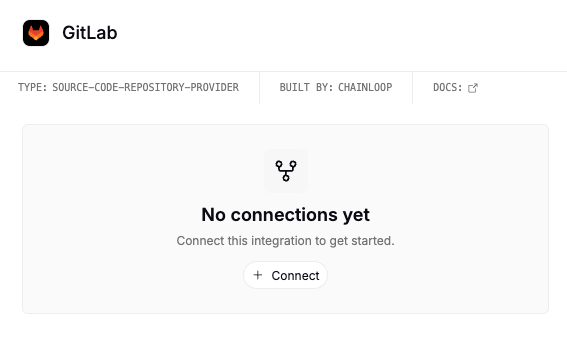 Complete the OAuth authorization. For GitHub this installs the Chainloop GitHub App on the repositories you select; for GitLab this authorizes the Chainloop OAuth application.
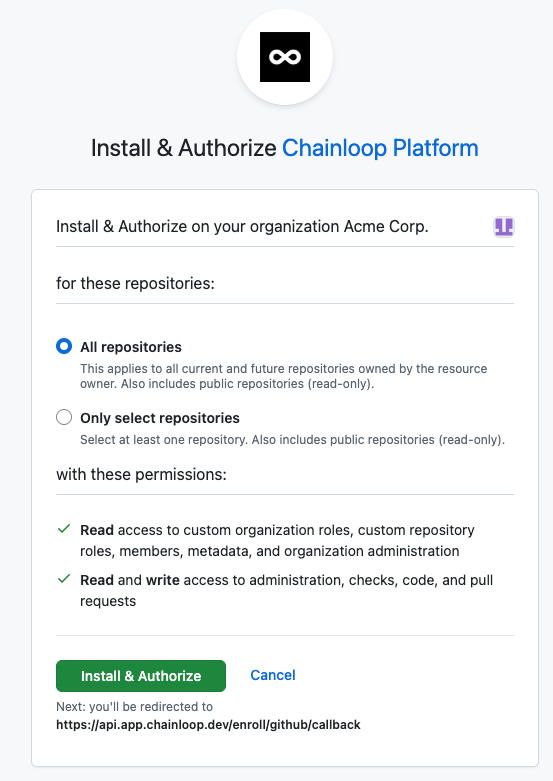 GitHub prompts you to install the Chainloop GitHub App on your account or organization, then choose whether to grant access to all repositories or select individual ones. You can change this selection later from GitHub without reconnecting from Chainloop.
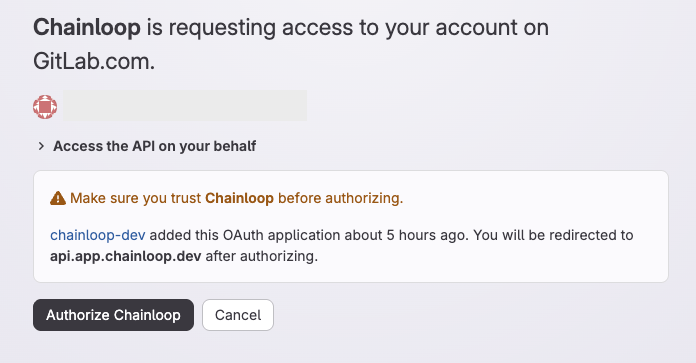 GitLab prompts you to authorize the Chainloop OAuth application, granting it read access to the groups and projects you approve.
Chainloop stores only repository metadata (ID and name), not your repository code.
## Adjusting repository access
To add or remove the repositories Chainloop can see, use the provider's app or authorization settings rather than reconnecting from Chainloop:
* **GitHub**: open the Chainloop GitHub App configuration for your account or organization and update the repository selection.
* **GitLab**: open the authorized application settings for the Chainloop OAuth application and update the granted scope.
This is also where the Create Project wizard's **Manage access** link takes you.
## Reconnecting
If a connection breaks — for example, the GitHub App is uninstalled or the GitLab authorization is revoked — managed workflows and other repository features are paused for the affected repositories until you reconnect. To restore access, go to **Integrations**, click **Connect** on the affected provider, and re-grant repository access.
***
Next: [Create a project](/get-started/projects/create-project). See also the [GitHub permissions reference](/reference/github-permissions) for the exact scopes the Chainloop GitHub App requests.
GitLab prompts you to authorize the Chainloop OAuth application, granting it read access to the groups and projects you approve.
Chainloop stores only repository metadata (ID and name), not your repository code.
## Adjusting repository access
To add or remove the repositories Chainloop can see, use the provider's app or authorization settings rather than reconnecting from Chainloop:
* **GitHub**: open the Chainloop GitHub App configuration for your account or organization and update the repository selection.
* **GitLab**: open the authorized application settings for the Chainloop OAuth application and update the granted scope.
This is also where the Create Project wizard's **Manage access** link takes you.
## Reconnecting
If a connection breaks — for example, the GitHub App is uninstalled or the GitLab authorization is revoked — managed workflows and other repository features are paused for the affected repositories until you reconnect. To restore access, go to **Integrations**, click **Connect** on the affected provider, and re-grant repository access.
***
Next: [Create a project](/get-started/projects/create-project). See also the [GitHub permissions reference](/reference/github-permissions) for the exact scopes the Chainloop GitHub App requests.